Databases
The dashboard now has a Databases section: standard PostgreSQL alongside your projects, in the same account and on the same servers in Russia.
What's inside
Create a database from your dashboard and it appears in your account's database list. It is usually ready in a few minutes. The screen shows the current step and elapsed time.
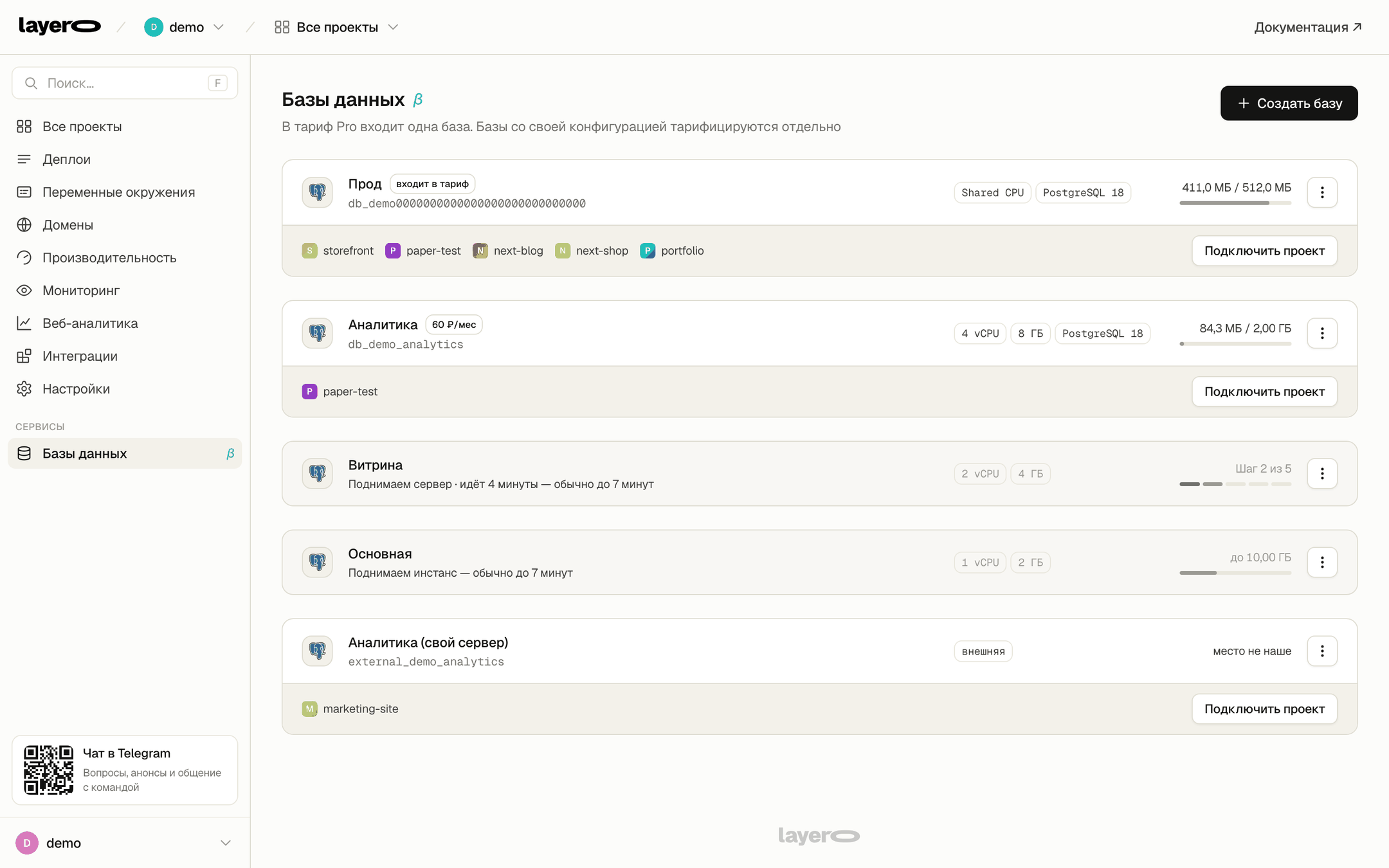
Regular PostgreSQL
The same SQL and tools you already know. Move a project from another provider without rewriting it.
The project connects itself
Connect the database to a project, and the platform injects its address and password into the build automatically.
Custom configuration
Choose the CPU, memory and disk capacity for your database. Pro includes one database; databases with custom configurations are billed separately.
You can also bring your own base
A database hosted elsewhere appears in the same list and can be connected to projects in the same way. Its storage remains with its existing provider.
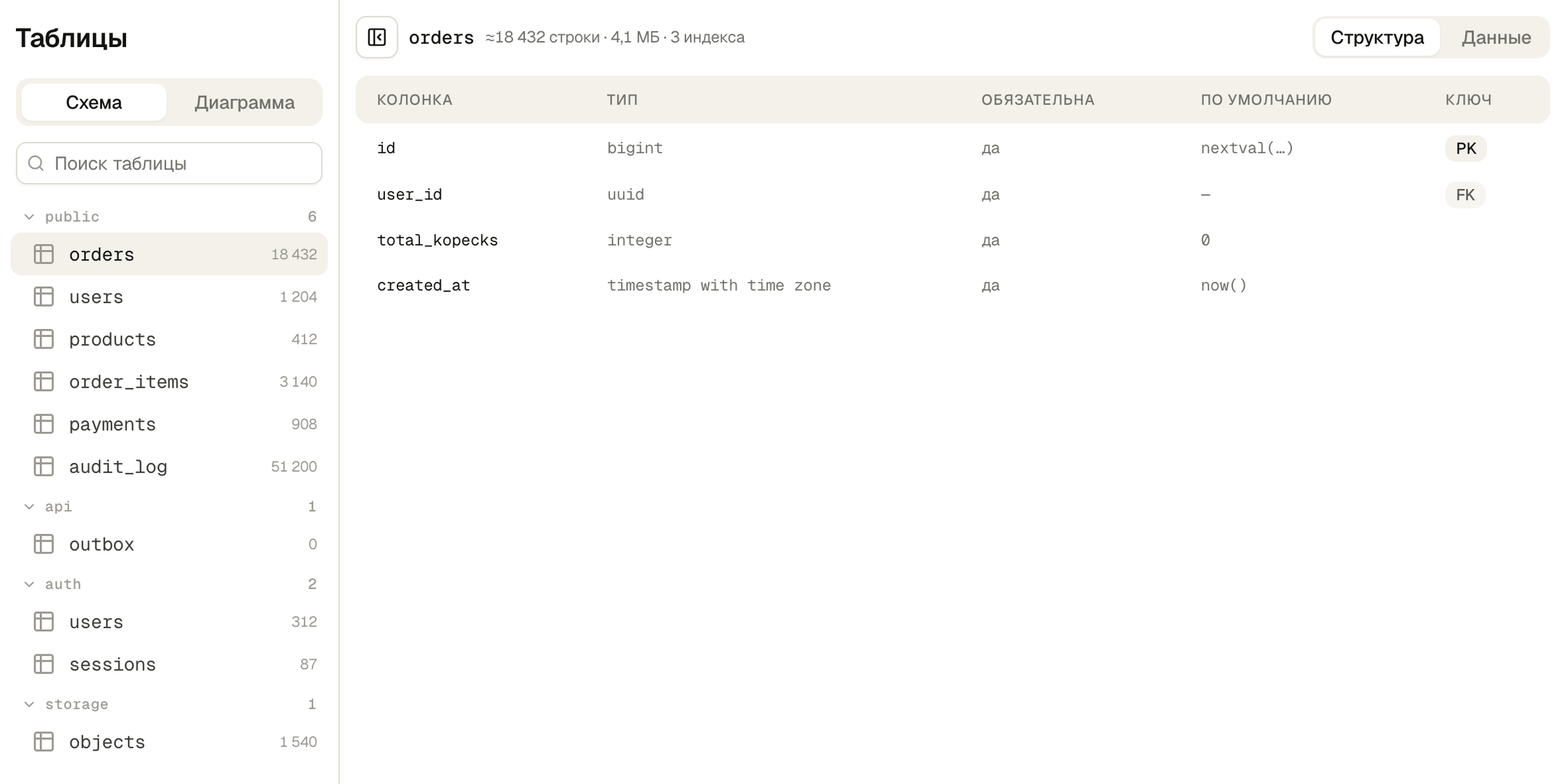
Tables and relationships
Browse PostgreSQL schemas on the left and inspect the selected table's structure or rows on the right. No separate database client is needed.
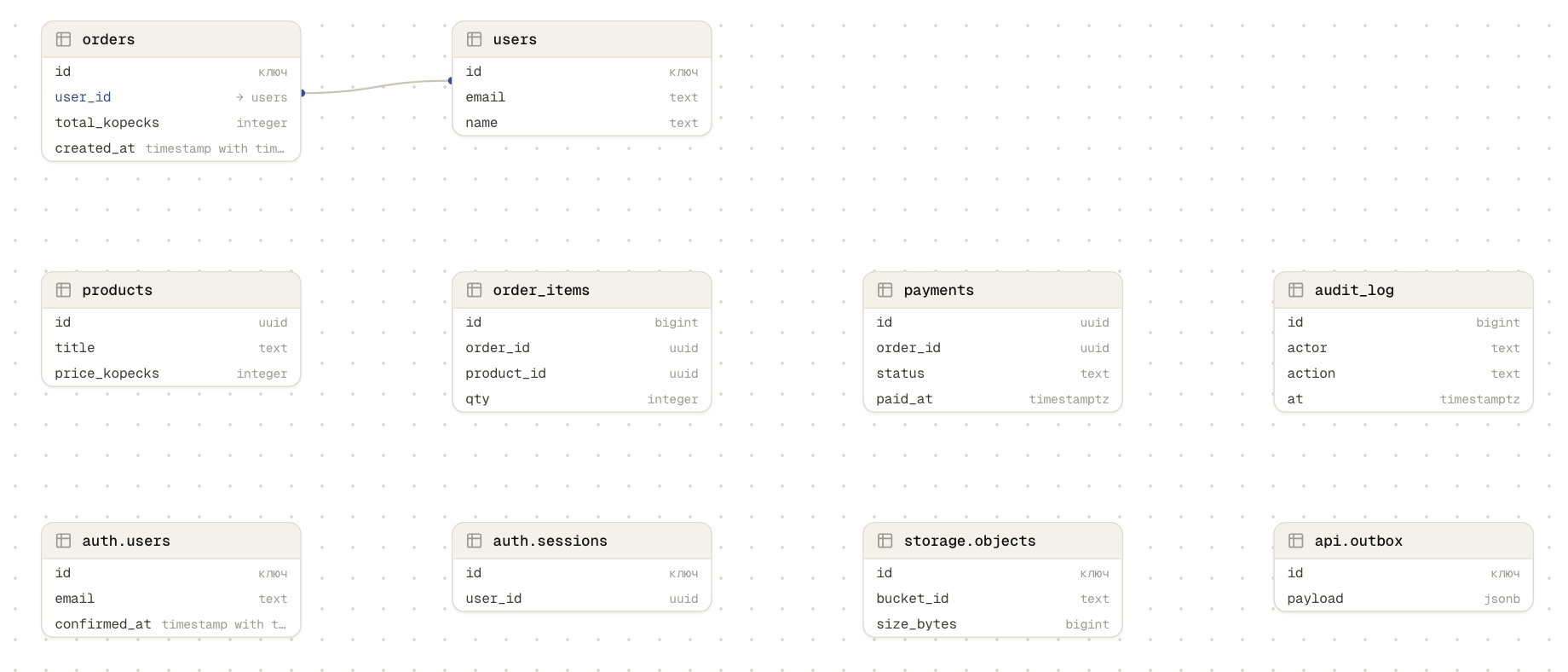
The second tab shows a visual overview: table cards and the relationships between them. Useful when someone else designed the database.
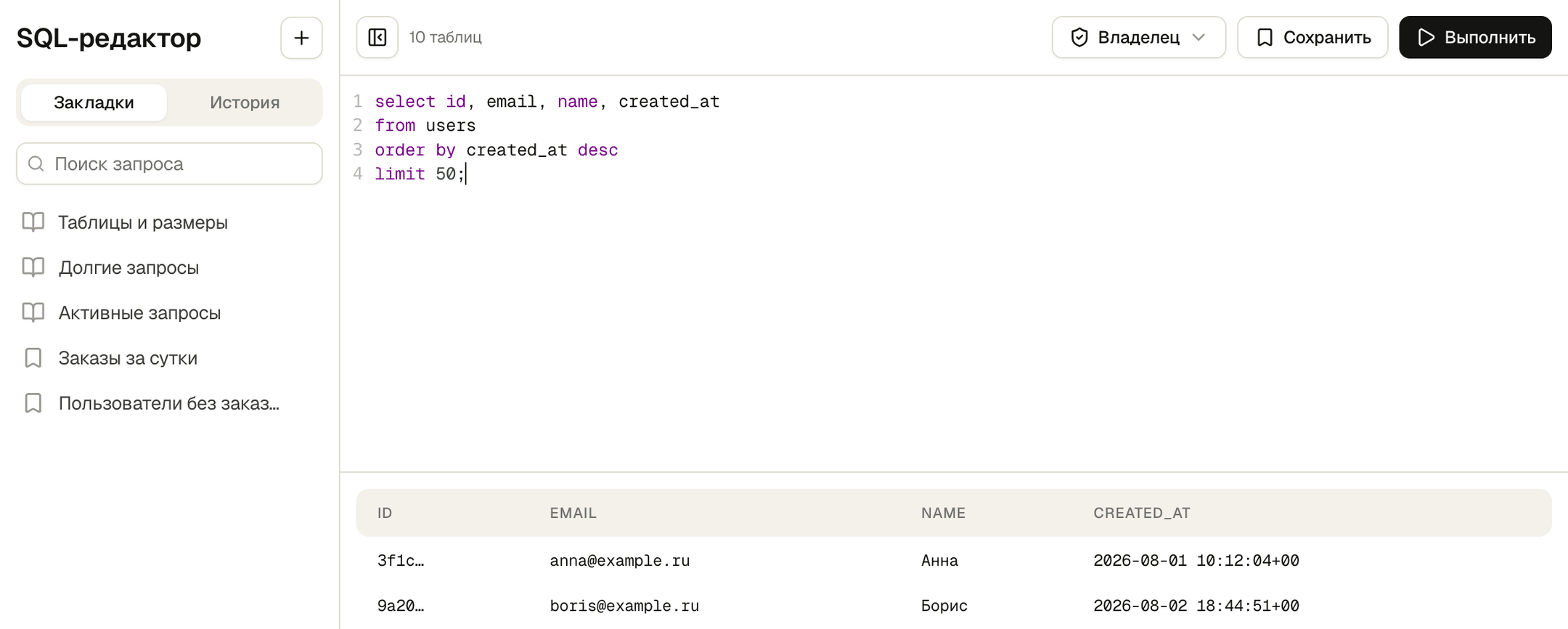
SQL editor
Run SQL queries directly in the dashboard. Bookmarks and history are on the left; the active role is at the top. Querying as the application's role shows exactly what it can access.
Functions
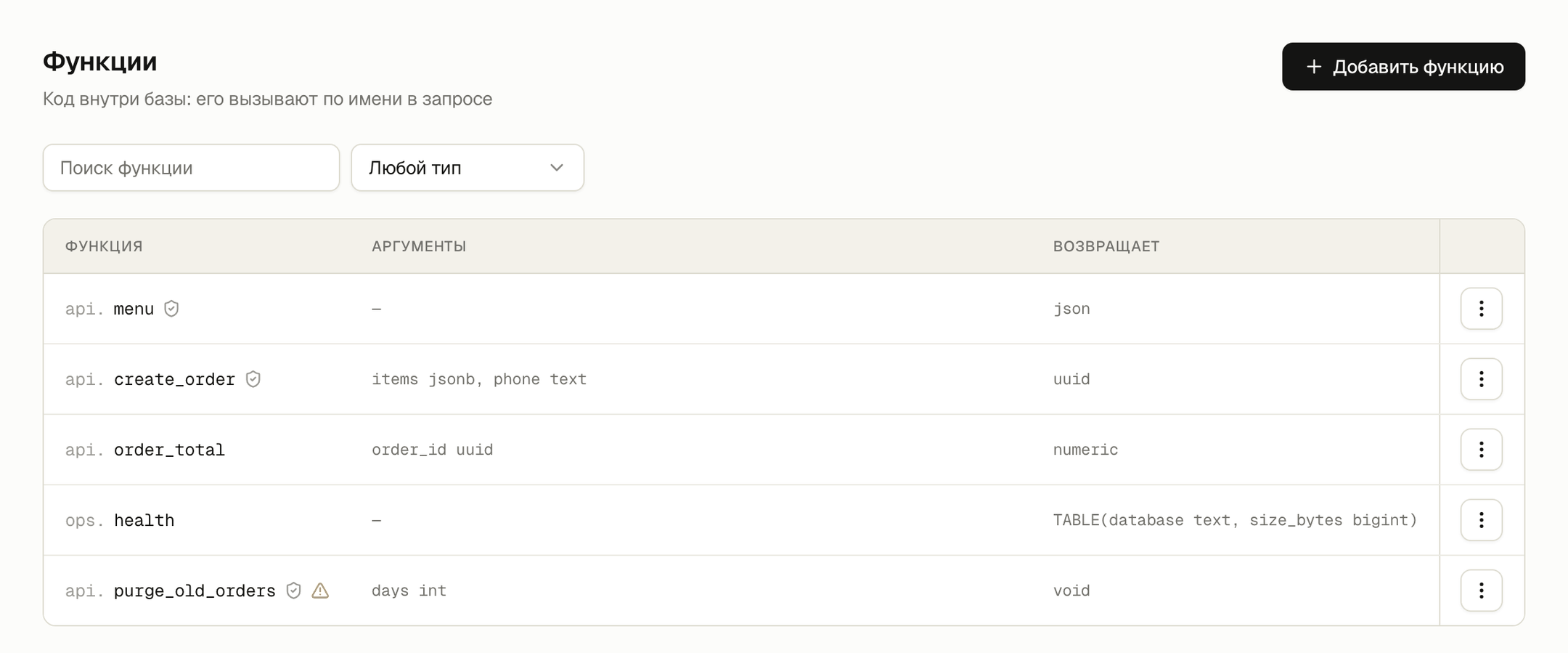
Functions are code stored in the database and called by name in a query. The list shows each function's arguments, return value and callers.
Who can do what
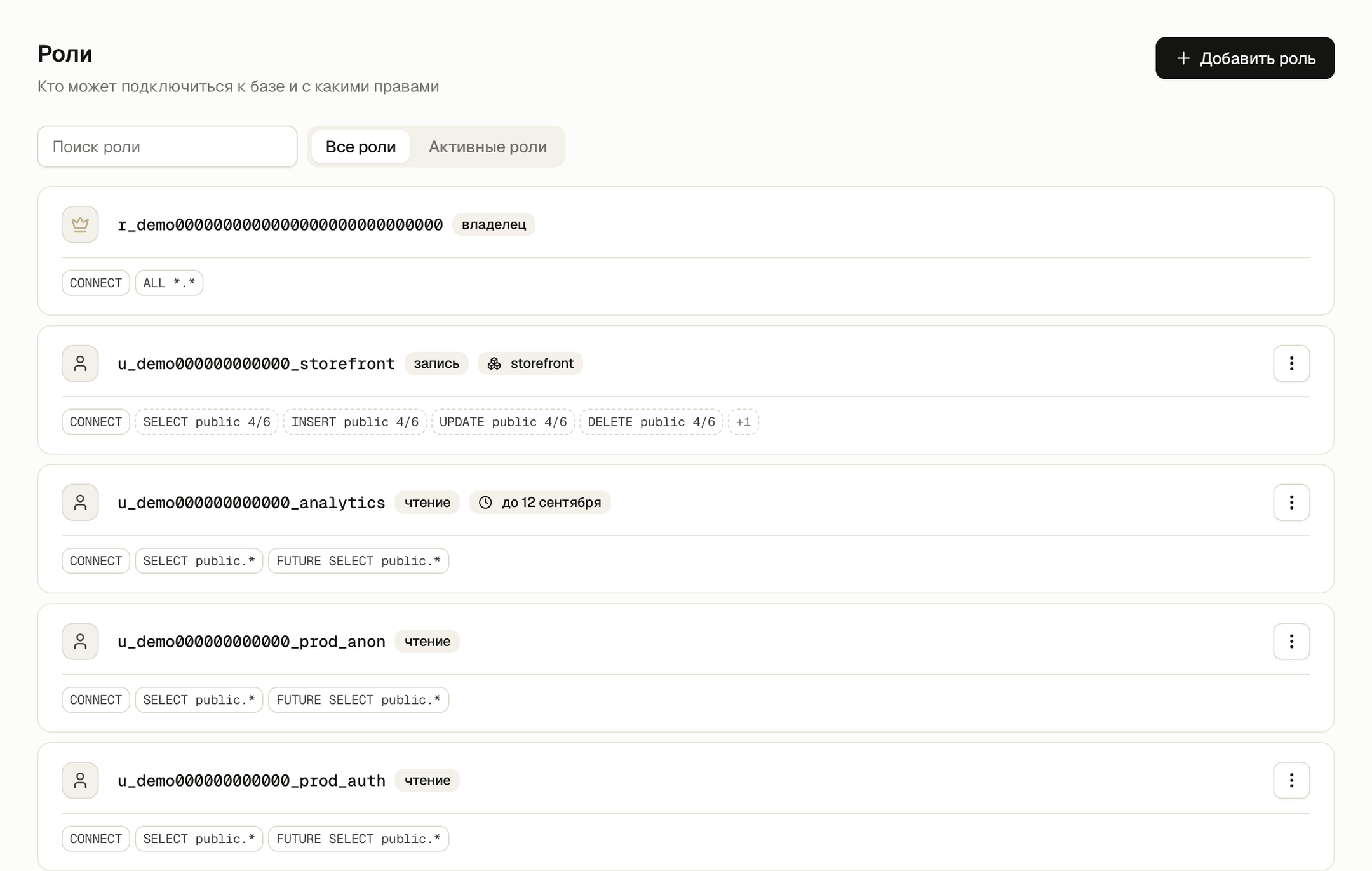
Roles define who can connect to the database and what they can do. You can grant access for a limited time, such as giving an analyst access until the end of the week.
Policies determine which rows a query can return. These are RLS rules. The platform separately flags tables with RLS enabled but no policies — such tables are open to anyone with access to them.
Extensions
Toggle extensions on and off without writing SQL. Each extension shows its version and the schema where it is installed.
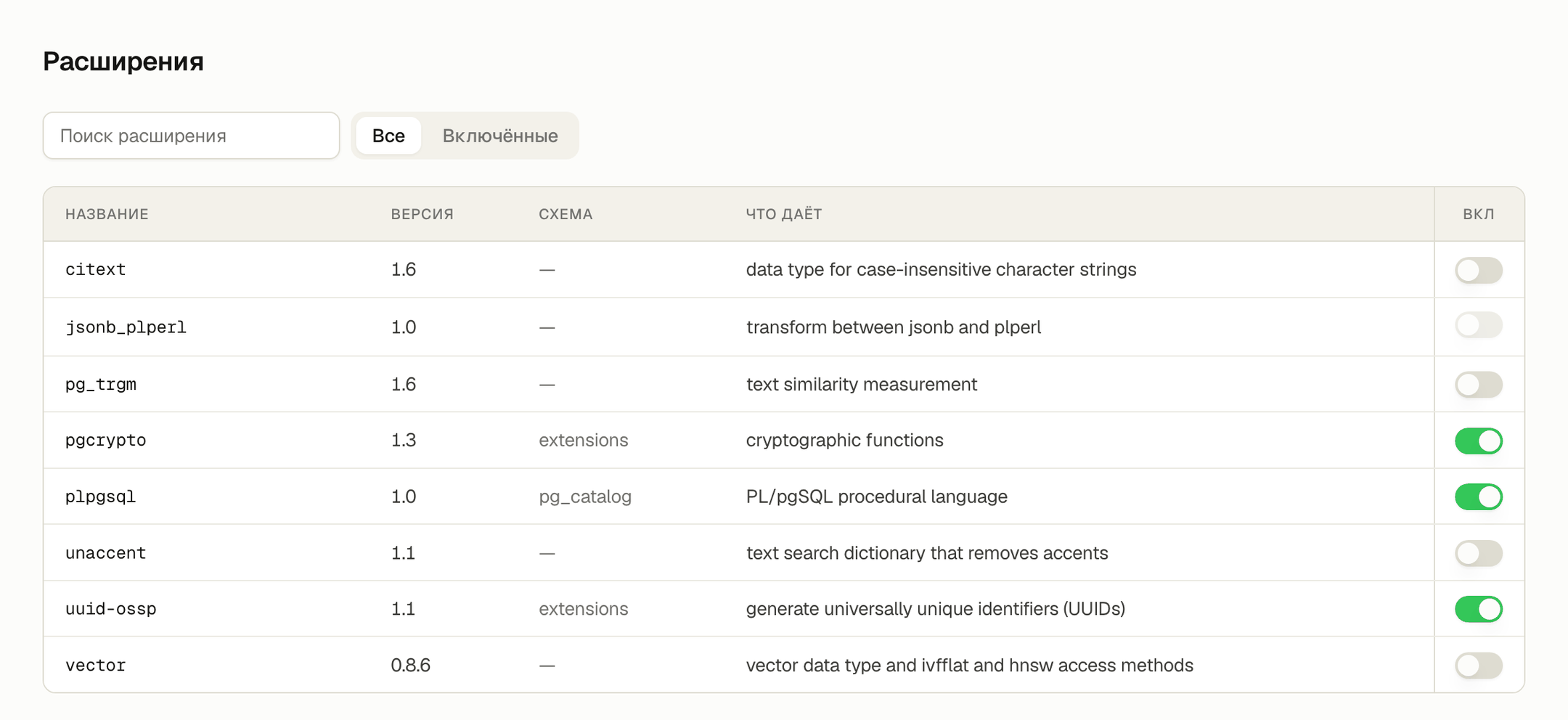
pgcrypto, uuid-ossp, pg_trgm and vector.Monitoring
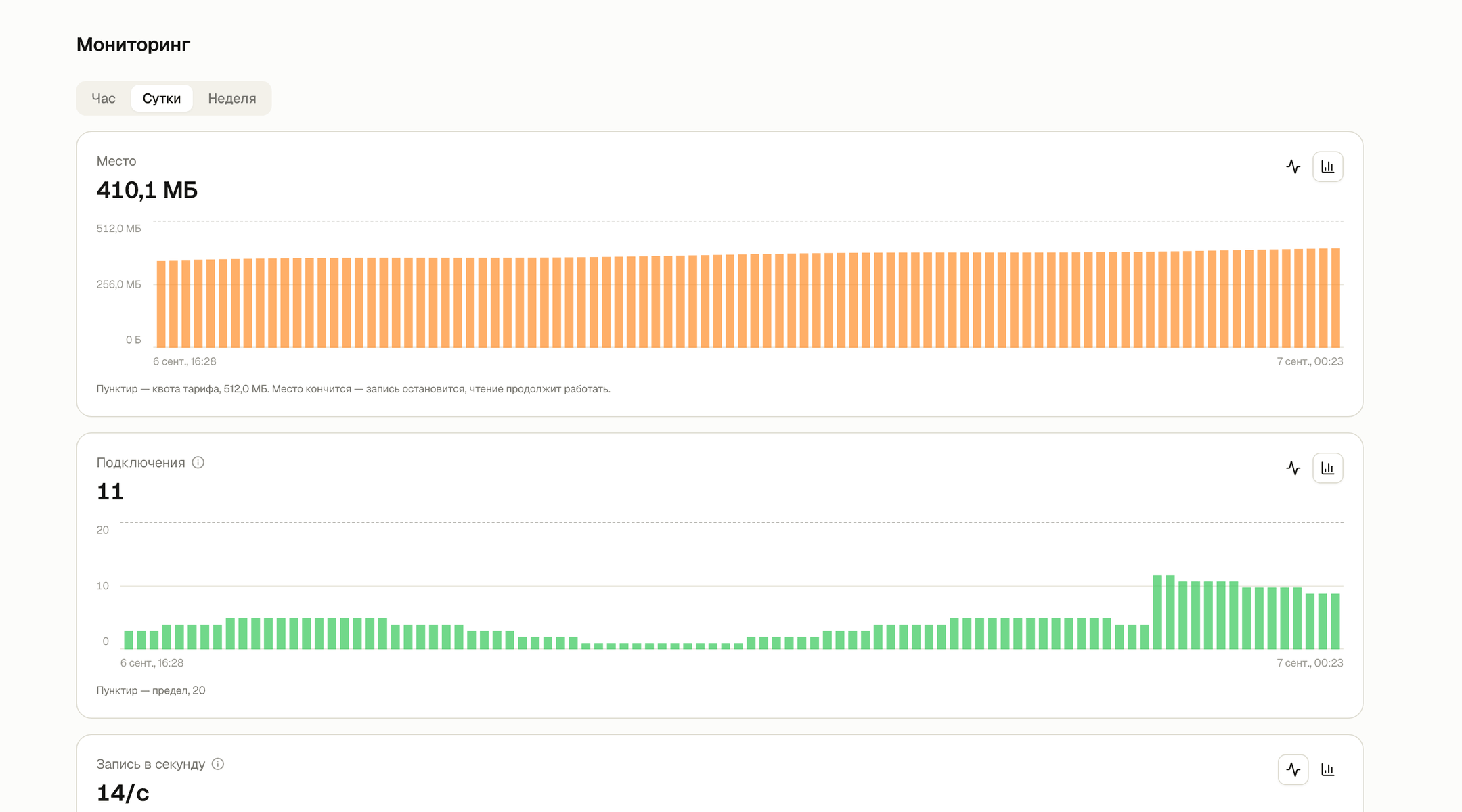
Storage, connections and load, charted over an hour, a day or a week.
Backups
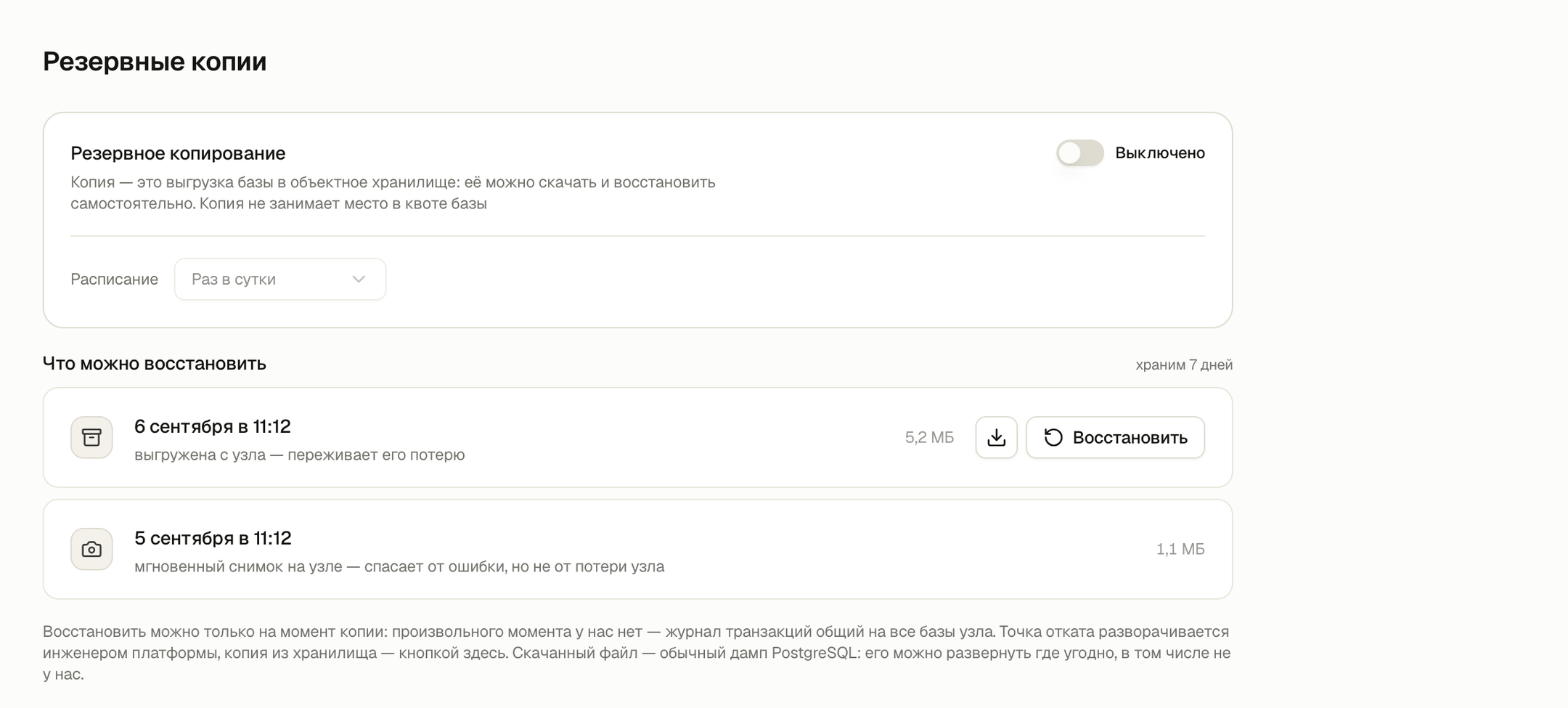
Enable backups with one button, then set the schedule and retention period. To restore a backup, click its restore button.
Connect directly
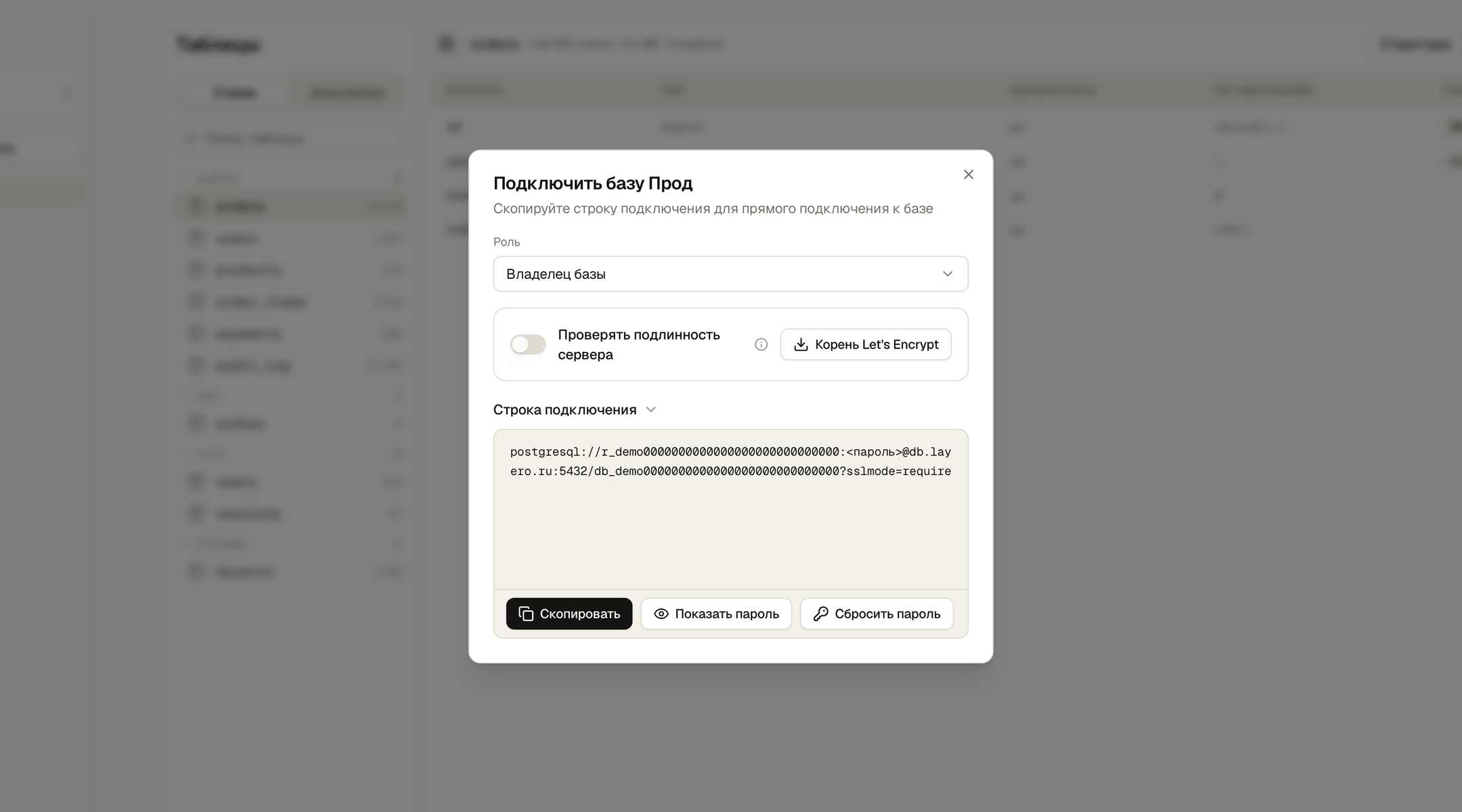
To connect directly, generate a connection string for the selected role in the dashboard. You can reveal or reset its password there too.
Get first base
One database is included in the Pro plan - it’s enough to connect the project and try it out.